IBM Quantum Composer
IBM Quantum Composerとは?
IBM Quantum® Composer は、グラフィカルな量子プログラミングツールです。オペレーションをドラッグ&ドロップして量子Circuitを構築し、量子ハードウェアで実行することができます。
何ができますか?
Qubit状態の可視化
Circuitに加えた変更がQubitの状態にどう影響するかを確認できます。インタラクティブなq-sphereや、測定確率または状態ベクトルシミュレーションを示すヒストグラムとして表示されます。
量子ハードウェアでの実行
実際の量子ハードウェアでCircuitを実行し、デバイスノイズの影響を理解することができます。
コードの自動生成
手動でコードを書く代わりに、Composerで作成したCircuitと同じ動作をするOpenQASMまたはPythonコードを自動生成できます。
インターフェースのツアー
IBM Quantum Composerには、量子回路(Circuit)を構築・可視化・実行するためのカスタマイズ可能なツールが揃っています。各ウィンドウの「More options」メニューから追加のツールやアクションにアクセスできます。
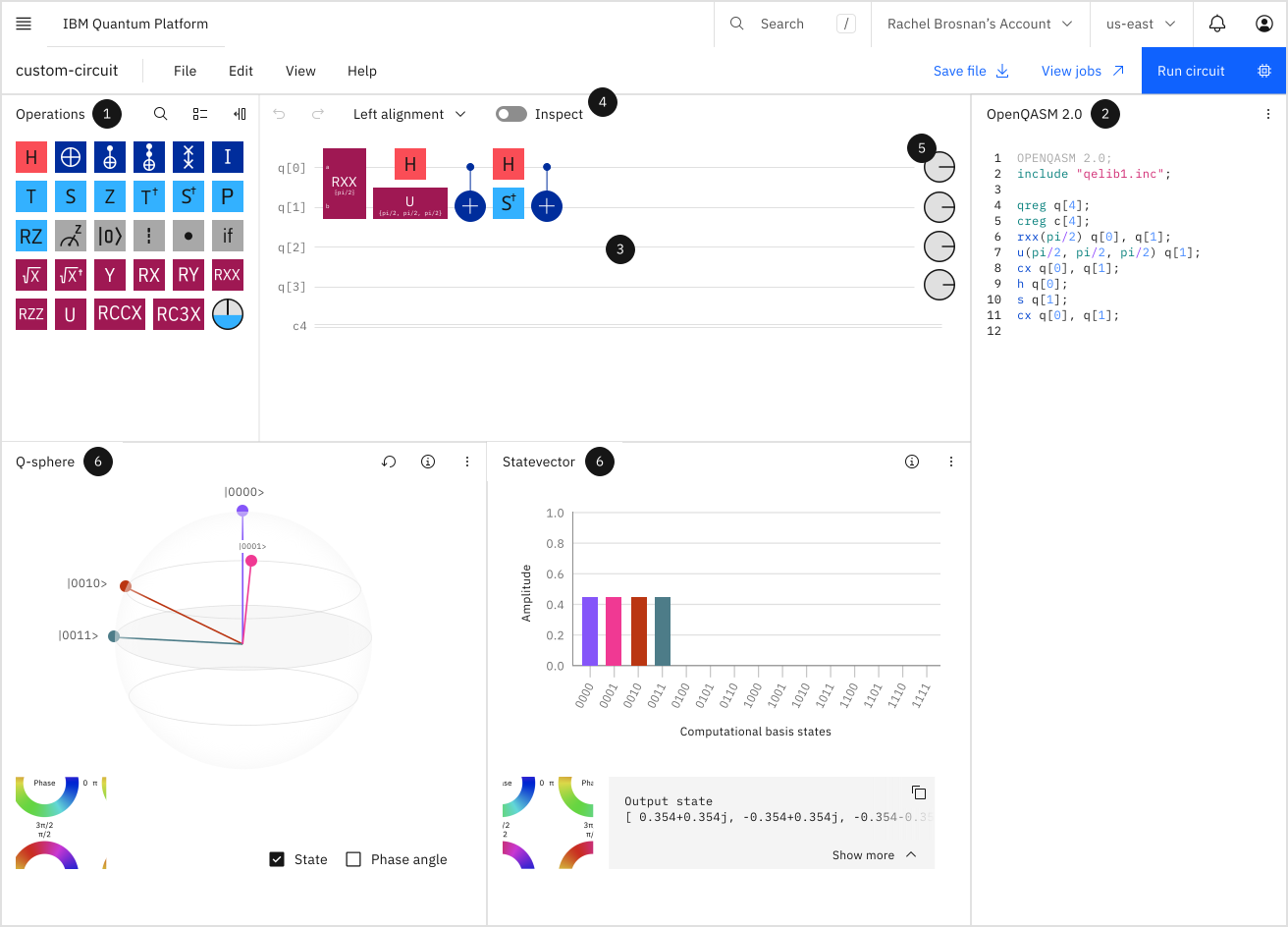
-
オペレーションカタログ - 量子Circuitの構成要素です。これらのGateやその他のオペレーションをグラフィカルなCircuitエディタにドラッグ&ドロップします。Gateの種類ごとに色分けされています。たとえば、古典Gateはダークブルー、フェーズGateはライトブルー、非ユニタリオペレーションはグレーです。
利用可能なGateやオペレーションについて知りたい場合は、オペレーションを右クリックして「Info」を選択すると、その定義を確認できます。
-
コードエディタ - Viewメニューを使ってコードエディタを開閉できます。Circuitに対応するOpenQASMまたはQiskitコードを確認できます。OpenQASMコードは編集可能ですが、Qiskitコードは読み取り専用です。
-
グラフィカルCircuitエディタ - Circuitを構築する場所です。量子レジスターを構成する水平なQubitの「ワイヤー」にGateやその他のオペレーションをドラッグします。
ワイヤーからGateを削除するには、Gateを選択してゴミ箱アイコンをクリックします。
編集をサポートするGateのパラメータや設定を変更するには、グラフィカルエディタでGateを選択して「Edit」をクリックします。
-
ツールバー - 操作の取り消し・やり直し、Gate配置の変更、インスペクトモードへの切り替えなど、よく使うツールにアクセスできます。インスペクトモードでは、Circuit計算が進むにつれてQubit状態をステップごとに確認できます。詳しくはCircuitをステップごとにインスペクトするを参照してください。
-
フェーズディスク - 複素平面におけるQubit状態ベクトルのフェーズは、図の中心からグレーのディスクの端まで伸びる線で表されます(中心点の周りを反時計回りに回転します)。
Viewメニューを使ってフェーズディスクの表示・非表示を切り替えられます。
-
可視化ツール - 可視化ツールはCircuitを構築しながらその特性を示します。シングルショット状態ベクトルシミュレーターを使用しており、「Run circuit」設定で指定するQPUとは異なります。なお、可視化ツールは追加した測定オペレーションを無視します。指定したBackendから結果を取得するには、サインインしてRun circuitをクリックしてください。
詳細は可視化ツールセクションを参照してください。
量子Circuitの構築・編集・インスペクト
後でCircuitの作業を続けたい場合は、現在のComposerセッションを終了する前に必ずCircuitファイルをダウンロードしてローカルに保存してください。右上の「Save file」リンクを使うか、Fileメニューから「Save file」を選択します。再度作業する際は、Fileメニューから「Upload .qasm file」を選択し、ローカルドライブのCircuitファイルに移動して「Open」をクリックします。
1. IBM Quantum Composerを開く
- (任意)IBM Quantumにサインインしていない場合は、右上のSign inを選択します。サインインするか、Create an IBM Cloud accountでアカウントを作成できます。
サインインしない場合、可視化ツールは最大4 Qubitのシミュレーション結果を自動的に表示します。量子コンピュータでCircuitを実行したい場合、または4 Qubitを超えるCircuitを可視化したい場合は、サインインが必要です。
-
Learningページのナビゲーションにあるリンクをクリックして、IBM Quantum Composerを開きます。ワークスペースには無題の空のCircuitが表示されます。新しいCircuitを作成するか、.qasmファイルをアップロードして既に作成したCircuitの作業を続けることができます。
-
Untitled circuitという文字をクリックしてCircuitに名前を付け、名前を入力します。チェックマークをクリックして名前を保存します。
-
(任意)ワークスペースをカスタマイズします:
-
Viewメニューを使ってデフォルトテーマからモノクロームテーマに変更できます。ワークスペースに表示するパネルを選択し、任意のパネルの右隅にあるメニューからさらなるカスタマイズオプションにアクセスできます。フェーズディスクの表示・非表示、Circuit上のQubitの配置選択、ワークスペースのデフォルトへのリセットもViewメニューにあります。
-
フッターの右下でダークテーマとライトテーマを切り替えられます。
-
Circuitを構築するには、オペレーションのドラッグ&ドロップか、コードエディタへのOpenQASMコード入力のいずれかを使用できます。
2. ドラッグ&ドロップでCircuitを構築する
オペレーションカタログ
オペレーションカタログから量子レジスターと古典レジスターにオペレーションをドラッグ&ドロップします。検索アイコンをクリックして検索バーにキーワードを入力すると、オペレーションをすばやく見つけられます。
オペレーションパネルの右上にあるアイコンをクリックすると、オペレーションカタログを折りたたんだり展開したりできます。その隣のアイコンをクリックすると、カタログのグリッド表示とリスト表示を切り替えられます。
オペレーションアイコンを右クリックして「Info」を選択すると、オペレーションの定義とそのQASMリファレンスを確認できます。
操作を取り消したりやり直すには、ツールバーの曲線矢印を使用します。
配置
フリーフォーム配置(Freeform alignment)を選択すると、Circuit上の任意の場所にオペレーションを配置できます。よりコンパクトなCircuit表示には、左揃え(Left alignment)を選択してください。オペレーションの実行順序を確認するには、レイヤー配置(Layers alignment)を選択します。これにより左揃えが適用され、左から右・上から下の実行順序を示す列の区切りが追加されます。
Circuitにオペレーションを配置した後も、ドラッグ&ドロップで新しい位置に移動できます。
コピーと貼り付け
オペレーションをクリックし、コンテキストメニューのアイコンを使ってコピー&ペーストします。
複数オペレーションの選択
複数のオペレーションを選択して、コピー&ペーストしたり、新しい場所にドラッグしたり、オペレーションカタログに表示されて単一Gateとして機能するカスタムユニタリオペレーションにグループ化したりすることができます。
複数のオペレーションを選択するには、いずれかのオペレーションのすぐ外側にカーソルを置き、クリックしてドラッグして範囲を選択します。Shiftキーを押しながら個々のオペレーションをクリックすると、選択・選択解除できます。選択中のオペレーションは破線で囲まれ、実際に選択されているオペレーションは青色で囲まれます。
たとえば、次の画像では、q1のHadamard GateとCX Gateが選択されています。q0のHadamard Gateは選択されていません。

コンテキストメニューから「Copy」を選択してグループをコピーします。
オペレーションのグループを貼り付けるには、Circuitを右クリックして「Paste」を選択します。
グループ機能を使ったカスタムオペレーションの構築
複数のオペレーションをグループ化してカスタムオペレーションとして保存するには、まず上記の方法でオペレーションを選択し、コンテキストメニューから「Group」を選択します。カスタムオペレーションの名前を入力するか、デフォルト名をそのまま使用できます。「OK」をクリックすると、カスタムオペレーションはCircuitとオペレーションカタログの両方で1つのボックスとして表示されます。
新しいオペレーションはCircuit全体にドラッグ&ドロップして使用できます。ただし、このオペレーションは現在のCircuitにのみ保存され、他のCircuitのオペレーションカタログには表示されません。
OpenQASMコードエディタでカスタムオペレーションを直接構築することもできます。詳しくはOpenQASMでカスタムオペレーションを作成するを参照してください。
カスタムまたは定義済みオペレーションのグループ解除
カスタムまたは定義済みオペレーション内のGateをグループ解除するには、Composer上でオペレーションをクリックし、コンテキストメニューから「Ungroup」を選択します。これにより、各オペレーションを個別に移動できるようになります。オペレーションをグループ解除すると、以前のグループ内の各要素が独立して実行されるため、グループ化されていたときとは実行順序が変わる場合があります。
オペレーションの定義を展開する
カスタムまたは定義済みオペレーションをグループ解除せずに構成オペレーションを確認するには、コンテキストメニューからExpand definitionをクリックして定義しているGateを表示します。再度アイコンをクリックすると定義を折りたたみます。
カスタムオペレーションの名前変更または削除
カスタムオペレーションの名前を変更または削除するには、オペレーションカタログでオペレーションを右クリックし、「Rename」または「Delete」を選択します。オペレーションカタログからカスタムオペレーションを削除すると、Circuit上のすべてのインスタンスも削除されます。
Circuit自体からカスタムオペレーションを削除しても、オペレーションカタログからは削除されません。カタログからカスタムオペレーションを削除するには、右クリックして「Delete」を選択する必要があります。
レジスターの追加または削除
量子または古典レジスターを追加・削除するには、「Edit → Manage registers」をクリックします。Circuit内のQubitやビットの数を増減したり、レジスター名を変更したりできます。Okをクリックして変更を適用します。レジスター名(例:q[0])をクリックして、コンテキストメニューのオプションからレジスターやQubitをすばやく追加・削除することもできます。
条件の追加
Gateに条件を追加するには、ifオペレーションをGateにドラッグし、自動的に開く「Edit operation」パネルでパラメータを設定します。Gateをダブルクリックして「Edit operation」パネルを開き、条件パラメータを設定することもできます。
コントロール修飾子の追加
コントロール修飾子は、元のオペレーションがコントロールQubitの状態に依存するGateを生成します。詳細については、オペレーションカタログのコントロール修飾子シンボルを右クリックして「Info」をクリックしてください。
コントロール修飾子をGateにドラッグすると、そのGateにコントロールが追加されます。コントロールQubit上にドットが表示され、ターゲットQubitと線で結ばれます。コントロールまたはターゲットとなるQubitを変更するには、Gateをクリックして「Edit operation」アイコンを選択するか(またはGateをダブルクリックして)「Edit operation」パネルを開き、パラメータを指定します。「Edit operation」パネルでは、Qubit名の横の「x」をクリックしてコントロールをQubitから削除することもできます。
Circuit全体でフェーズディスクを使って可視化する
Circuit上の任意の時点でのすべてのQubitの状態を可視化するには、オペレーションカタログからフェーズディスクアイコンをドラッグしてCircuitの任意の場所に配置します。バリアオペレーションとフェーズディスクの列が追加されます(Qubitごとに1つのバリアオペレーションとフェーズディスク)。各フェーズディスクにカーソルを合わせると、Circuit上のその時点でのQubitの状態を確認できます。フェーズディスクを追加してもCircuitは変更されません。あくまでも可視化ツールです。
フェーズディスクの可視化の詳細はこちらを参照してください。
Circuitイメージのエクスポート
Circuitのイメージをエクスポートするには、「File → Export circuit image」を選択します。「Export options」ウィンドウが開き、テーマ(ライト、ダーク、黒地に白、白地に黒)、フォーマット(.svgまたは.png)、行の折り返しを適用するかどうかを選択できます。オプションを選択したら、「Export」をクリックします。
3. OpenQASMコードでCircuitを構築する
IBM Quantum Composerは現在OpenQASM 2.0をサポートしています。
-
コードエディタを開くには、「View → Panels → Code Editor」をクリックします。
-
Gateやその他のオペレーションのOpenQASMリファレンスについては、Composerオペレーション用語集を参照してください。
-
独自のカスタムオペレーションを定義することもできます。OpenQASMでカスタムオペレーションを作成するを参照してください。
-
OpenQASM言語の使い方(コードのサンプルを含む)については、Introduction to OpenQASMガイドを参照するか、オリジナルの研究論文Open Quantum Assembly Languageを読んでください。論文に掲載されているOpenQASM言語ステートメントの表を以下に再現します。OpenQASMの文法は論文の付録Aに記載されています。
| ステートメント | 説明 | 例 |
|---|---|---|
OPENQASM 2.0; | OpenQASM形式のファイルを示す([a]参照) | OPENQASM 2.0; |
qreg name[size]; | 名前付きQubitレジスターの宣言 | qreg q[5]; |
creg name[size]; | 名前付きビットレジスターの宣言 | creg c[5]; |
include "filename"; | 別のソースファイルを開いて解析する | include "qelib1.inc"; |
gate name(params) qargs | ユニタリGateの宣言 | (論文本文参照) |
opaque name(params) qargs; | 不透明Gateの宣言 | (論文本文参照) |
// comment text | 行をコメントアウトする | // oops! |
U(theta,phi,lambda) qubit|qreg; | 組み込みの単一QubitのGateを適用する([b]参照) | U(pi/2,2*pi/3,0) q[0]; |
CX qubit|qreg,qubit|qreg; | 組み込みのCNOT Gateを適用する | CX q[0],q[1]; |
measure qubit|qreg -> bit|creg; | 基底での測定を行う | measure q -> c; |
reset qubit|qreg; | Qubitを状態に準備する | reset q[0]; |
gatename(params) qargs; | ユーザー定義のユニタリGateを適用する | crz(pi/2) q[1],q[0]; |
if(creg==int) qop; | 条件付きで量子オペレーションを適用する | if(c==5) CX q[0],q[1]; |
barrier qargs; | このソース行をまたいだ変換を防止する | barrier q[0],q[1]; |
[a] これはファイルの最初のコメント以外の行として記述する必要があります。
[b] パラメータtheta、phi、lambdaはパラメータ式で指定します。詳細については、論文の5ページ目と付録Aを参照してください。
OpenQASMでカスタムオペレーションを作成する
コードエディタで新しいユニタリオペレーションを定義できます(例については以下の図を参照)。オペレーションは組み込みオペレーションと同様にname(params) qargs;というステートメントで適用します。パラメータがない場合は括弧を省略できます。
カスタムオペレーションを定義するには、gatename(params) qargs;という形式でOpenQASMコードエディタに入力します。オペレーションリストの**+Add**をクリックすると、カスタムオペレーションの名前を入力するよう求められ、コードエディタで構築できます。
カスタムオペレーションを定義したら、グラフィカルエディタにドラッグ&ドロップして、編集アイコンでパラメータを調整します。
| カスタムオペレーションの例 | |
|---|---|
| カスタムオペレーションに含めるGate: |  |
| 新しいオペレーションのコード: |  |
| グラフィカルエディタ上の新しいオペレーション: |  |
4. Circuitをステップごとにインスペクトする
インスペクトモードは、作成したCircuitの内部動作をわかりやすくします。Circuit のシミュレーションを1レイヤーずつステップ実行し、計算が進むにつれてQubitの状態を確認できます。
-
Viewメニューで、使用したい可視化ツールのパネルを選択します。
-
ツールバーのInspectトグルをクリックします。インスペクトモードがオンになると、オフに戻すまで新たなオペレーションを追加できなくなります。
-
フリーフォーム配置(Freeform alignment)を使ってCircuitを構築した場合、インスペクトモードによって自動的に左揃え(Left alignment)がオンになります。
-
Circuitのコンポーネントの可視化をステップごとに移動するには、前進ボタンと巻き戻しボタンを使用します。

-
特定のオペレーションだけをインスペクトするには、インスペクト対象のオペレーションをクリックします。インスペクトモードで実行されることを示すカラーのオーバーレイが各オペレーションに表示されます。オペレーションの選択を解除するには、再度クリックするとオーバーレイが消えます。
-
可視化ツールの解釈方法については、可視化ツールのトピックを参照してください。
-
インスペクトモードを終了してCircuitの編集に戻るには、ツールバーのInspectトグルをクリックします。
シミュレーターはシードに基づいて結果を生成することでランダム性を作り出します。シードは疑似乱数を生成するアルゴリズムに導入される初期値です。シード番号はEditメニューの「Visualizations seed」を選択することで確認できます。ボックスの値を変更することで、シードを自分で設定することもできます。
Circuitの実行と結果の確認
以下の手順に従って、QPU上で量子Circuitを実行し、結果を確認します。
ジョブ設定の選択
右上のRun circuitをクリックします。開いたウィンドウで利用可能なQPUを選択します。インスタンスも選択できます(Open、Flex、Premiumプランなどに関連付けられています)。選択したインスタンスによって利用可能なQPUが変わります。QPUの表にある「View details」リンクをクリックすると、各QPUの詳細情報を確認できます。
次に、BackendがCircuitを実行するショット数(実行回数)を設定できます。
このパネルでジョブに名前を付けたり、タグを追加したりすることもできます。これによってCircuit名は変更されません。事前に入力されている「Composer」タグにより、ワークロードテーブルをComposerジョブでフィルタリングしやすくなります。このタグは削除できます。
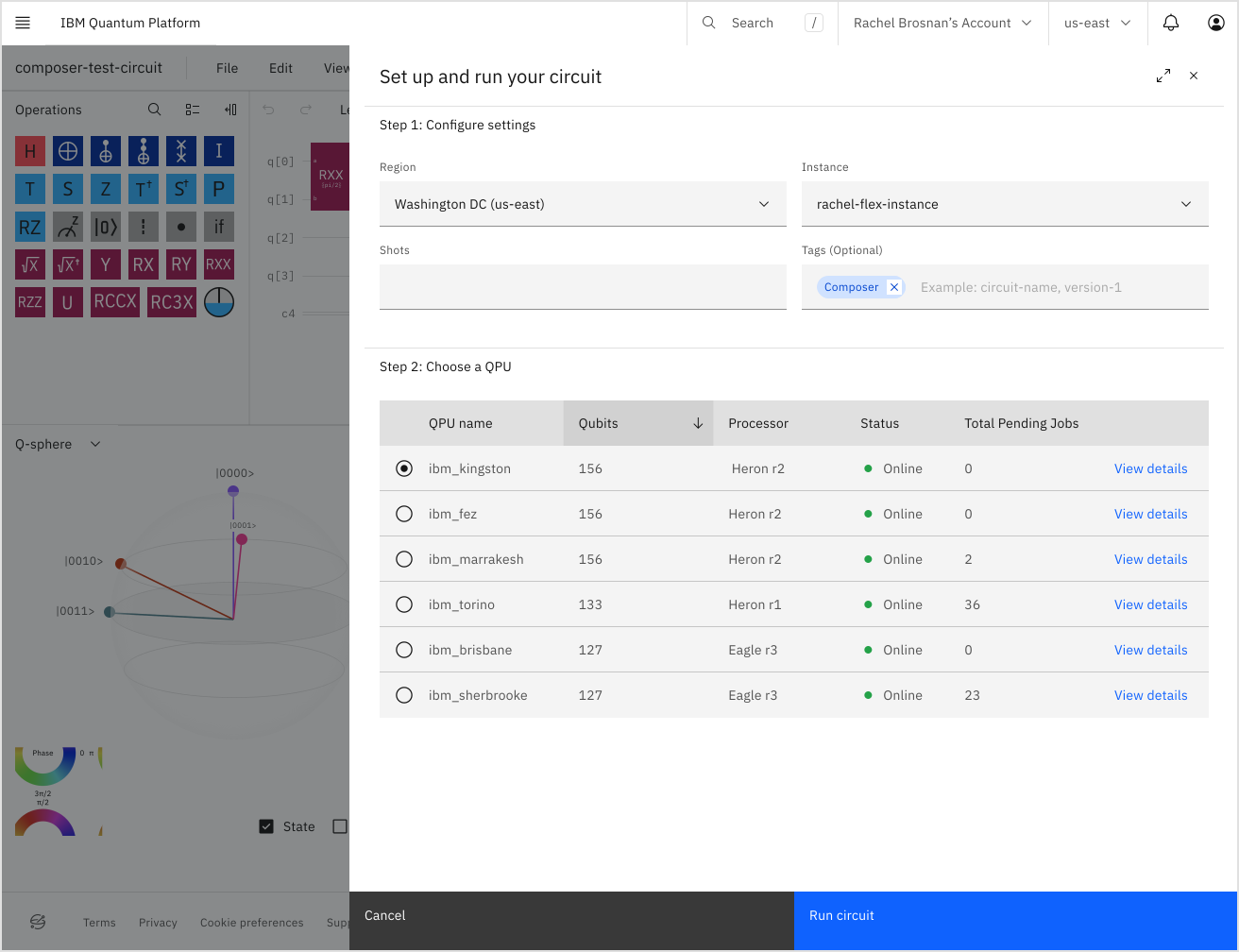
Circuitを実行すると、Run設定でQPUを指定しない限り、最もビジーでないQPUに自動的に送信されます。同じCircuitを再度実行する場合、QPU選択ウィンドウは前回の選択をデフォルトとして表示します。
「Run on (QPU名)」をクリックする
右上の「View jobs」ボタンをクリックしてジョブの進行状況を確認できます。IBM Quantum PlatformのWorkloadsページが開きます。
結果の確認
ジョブが完了すると、IBM Quantum PlatformのWorkloadsテーブルに詳細が更新されます。
Jobsの結果ページには、実行の詳細、元のCircuitとトランスパイルされたCircuitの図、結果のヒストグラム、元のCircuitとトランスパイルされたCircuitをOpenQASMまたはQiskitで確認するためのOpenQASMとQiskitのタブが表示されます。
各図の右上にあるメニューをクリックしてダウンロード形式(PNG、PDF、またはSVG;またヒストグラムはCSVファイルとしてもエクスポートできます)を選択することで、Circuitとヒストグラムをダウンロードできます。OpenQASMのCircuitはComposerで直接開くことができます。
可視化ツール
IBM Quantum Composerのライブ可視化ツールは、量子CircuitがQubitの集合の状態にどのような影響を与えるかをさまざまな視点で示します。各ライブ可視化ツールの種類について以下で詳しく説明します。
ライブ可視化ツールはシングルショット状態ベクトルシミュレーターから情報を取得します。これは、複数ショットを実行できるRun設定で指定するQPUとは異なります。シミュレーターはシードに基づいて結果を生成することでランダム性を作り出します。シードは疑似乱数を生成するアルゴリズムに導入される初期値です。シード番号はEditメニューの「Visualizations seed」を選択することで確認できます。ボックスの値を変更することで、シードを自分で設定することもできます。
可視化ツールの表示
ライブ可視化ツールはComposerワークスペースの下部にあるウィンドウに表示されます(フェーズディスクを除く。フェーズディスクは各Qubitワイヤーの末端に表示されます)。状態ベクトル、確率、q-sphereの可視化ツールを任意の組み合わせでワークスペース下部に表示できます。Viewメニューで可視化ツールを選択・解除します。
可視化ツールのダウンロード
Composerワークスペース下部の可視化ツールをダウンロードするには、可視化ウィンドウの「More options」メニューをクリックします。可視化ツールはSVG、PNG、または基礎データのCSVとしてダウンロードできます。測定確率および状態ベクトルヒストグラムの可視化イメージはPDFとしてダウンロードすることもできます。
フェーズディスク
単一Qubitの状態は次のように表せます
ここで、 はQubitが 状態にある確率、 は量子フェーズです。 は古典的な確率ビットと強く類似しています。 のとき、Qubitは 状態にあり、 のとき 状態にあり、 のとき50/50の混合状態です。これは重ね合わせ(superposition)と呼ばれます。古典ビットとは異なり、この混合状態には量子フェーズが存在します。フェーズディスクはこの状態を可視化します。
IBM Quantum Composerでは、各Qubitの末端にあるフェーズディスクが、計算終了時の各Qubitの局所状態を示します。フェーズディスクの各要素について以下で説明します。
Qubitが 状態にある確率
Qubitが 状態にある確率は、青色のディスクの塗りつぶしで表されます。

量子フェーズ
Qubit状態の量子フェーズは、図の中心からグレーのディスクの端まで伸びる線で表されます(中心点の周りを反時計回りに回転します)。

例:2つの異なるQubitのフェーズディスク
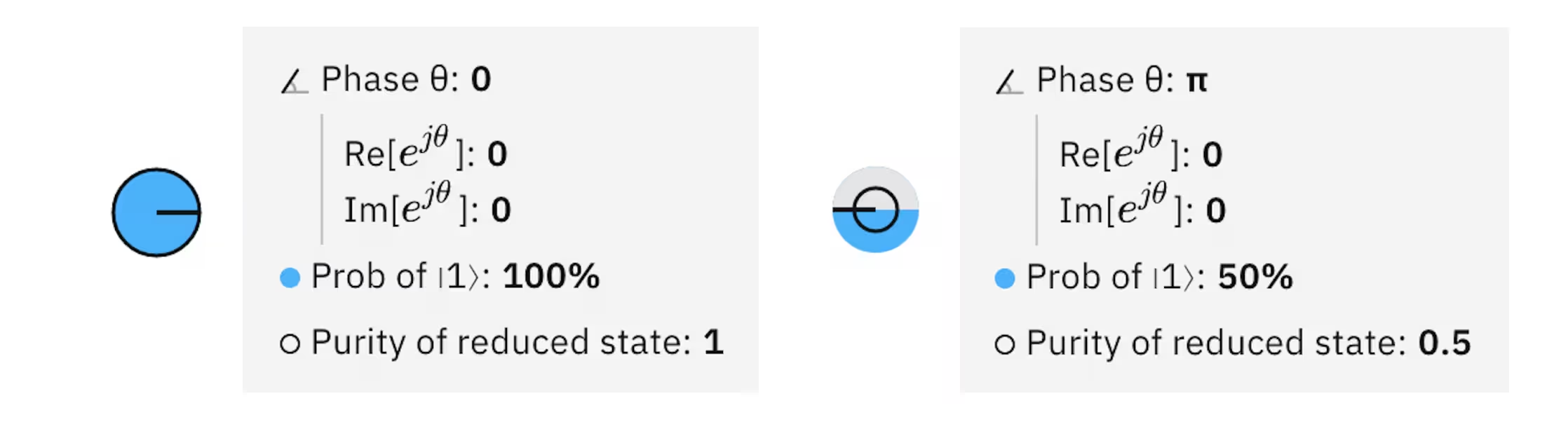
フェーズディスク可視化の2つの例です。最初の例は 状態で、2つ目は相対フェーズが非ゼロの 状態を示しています。
ブロッホ球との関係
フェーズディスクはブロッホ球のすべての情報を含む、Qubitの2次元表現です。ブロッホ球表現への変換は次のように行います:、、。
N-Qubit状態:最大15 qubit
N-Qubitの量子状態は次の形式を取ります
ここで、は、Qubitが状態に対して量子位相を持つ状態にある確率です。は、Qubitが基底状態にない確率です。ここで、N-Qubit量子状態には個の確率と個の位相があることが容易にわかります。フェーズディスクはこの状態を表現できません。なぜなら、N-Qubitのフェーズディスクには個の確率と個の位相しか含まれないためです。これは、ほとんどの状態がエンタングルしており、独立した単一Qubit量子状態に分離できないためです。この可視化に完全な情報が含まれていないことを示すために、フェーズディスクの構成要素として縮約純度を導入します。
Qubit状態の縮約純度
フェーズディスク上の黒いリングの半径はQubit状態の縮約純度を表します。N-Qubit状態 におけるQubit の縮約純度は で与えられます。単一Qubitの縮約純度は の範囲にあり、値が1であれば、そのQubitは他のどの系ともエンタングルしていないことを示します。一方、縮約純度が の場合、Qubitは完全混合状態にあり、残りの 個のQubitおよび場合によっては環境とある程度のエンタングルメントがあることを示します。
確率ビュー
8 Qubit上限
このビューは量子状態の確率を棒グラフとして可視化します。横軸は計算基底状態を示し、縦軸は確率をパーセントで示します。このビューでは量子フェーズは表現されないため、不完全な表現となります。しかし、各Qubitが測定されてその値が独自の古典ビットに格納された場合の結果を予測するのに役立ちます。
以下の量子Circuitとその確率ビューを考えてみましょう:


このCircuitは2つのQubitを の状態にします。計算基底状態は および です。各計算状態の確率は1/4です。
Q-sphereビュー
5 Qubit上限
q-sphereは、1つ以上のQubitからなるシステムの状態を、各計算基底状態を球面上の点に対応させることで表現します。各点にノードが表示されます。各ノードの半径はその基底状態の確率()に比例し、ノードの色は量子フェーズ()を示します。
ノードは次のようにq-sphere上に配置されます。すべてがゼロの基底状態(例:)が北極に、すべてが1の基底状態(例:)が南極に配置されます。ゼロ(または1)の数が同じ基底状態は、q-sphereの同じ緯度に並びます(例:)。q-sphereの北極から南に向かって、各緯度の基底状態は1の個数が多くなります。基底状態の緯度はゼロ状態からのハミング距離によって決まります。q-sphereはコンパクトな表現で量子状態の完全な情報を含んでいます。
以下の量子CircuitとそのCircuitが作り出す状態を表すq-sphereを考えてみましょう:

q-sphereを選択してドラッグすると回転できます。q-sphereをデフォルトの向きに戻すには、q-sphereの右上にある巻き戻し矢印ボタンを選択します。
q-sphereは、単一Qubitの場合でもブロッホ球とは同じではないことを強調しておくことが重要です。実際、フェーズディスクと同様に、ブロッホ球は量子状態の局所的なビューを提供し、各Qubitを個別に見ます。量子Circuitの適用によってQubitのレジスター(マルチQubit状態)がどのように動作するかを理解しようとするとき、グローバルな視点から量子状態全体を見ることがより洞察に富んでいます。q-sphereは量子状態の視覚的表現を提供し、このグローバルな視点を示します。そのため、少数のQubitで量子アプリケーションとアルゴリズムを探求する際には、q-sphereを主要な可視化方法として使用するべきです。
状態ベクトルビュー
6 Qubit上限
を量子振幅と呼ぶのが一般的です。このビューは量子振幅を棒グラフとして可視化します。横軸は計算基底状態を示し、縦軸は各計算基底状態に関連する振幅の大きさ()を示します。各バーの色は量子フェーズ()を表します。
以下の量子Circuitとその状態ベクトルビューを考えてみましょう:

このCircuitは2つのQubitを の状態にします。計算基底状態は 、、、および です。振幅の大きさはいずれも であり、基底状態に対する量子フェーズは と では 、 では です。
Composer操作用語集
このページは、量子回路でQubitを操作するために使用できるさまざまな古典的および量子的操作を定義するリファレンスです。量子操作には、Hadamardゲートなどの量子ゲートのほか、測定操作のように量子ゲートではない操作も含まれます。
以下の各エントリでは、各操作の詳細とOpenQASMリファレンスを提供しています。詳細については、OpenQASMコードでCircuitを構築するのトピックを参照してください。
以下の各ゲートエントリのq-sphere画像は、初期等重ね合わせ状態 ( はゲートをサポートするために必要なQubitの数)にゲートが作用した後の状態を示しています。このビジュアライゼーションの詳細については、q-sphereのトピックを参照してください。
IBM Quantum Composerでは、カスタム操作を定義して使用することができます。手順については、OpenQASMでカスタム操作を作成するのトピックを参照してください。
ゲートの色はライトテーマとダークテーマで若干異なります。ここではライトテーマの色を表示しています。
以下の量子操作をクリックすると、その定義が表示されます。
古典ゲート
NOTゲート
NOTゲートは、Pauli Xゲートとも呼ばれ、 状態を に、またその逆に反転させます。NOTゲートは、角度 のRX、または「HZH」と等価です。
| Composerリファレンス | OpenQASMリファレンス | Q-sphere | q-sphere表現に関する注意 |
|---|---|---|---|
 | x q[0]; |  | q-sphere表現は、ゲートが初期等重ね合わせ状態 ,( はゲートをサポートするために必要なQubitの数)に作用した後の状態を示しています。 |
CNOTゲート
制御NOTゲートは、制御X(CX)ゲートとも呼ばれ、一対のQubitに作用し、一方が「制御」、もう一方が「標的」となります。制御Qubitが状態 にある場合に限り、標的に対してNOT操作を行います。制御Qubitが重ね合わせ状態にある場合、このゲートはエンタングルメントを生成します。
すべてのユニタリ回路は、単一QubitゲートとCNOTゲートに分解できます。2Qubit CNOTゲートは実機上での実行に単一Qubitゲートよりもはるかに多くの時間を要するため、Circuitのコストを CNOTゲートの数で測ることがあります。
| Composerリファレンス | OpenQASMリファレンス | Q-sphere | q-sphere表現に関する注意 |
|---|---|---|---|
 | cx q[0], q[1]; |  | q-sphere表現は、ゲートが初期等重ね合わせ状態 ,( はゲートをサポートするために必要なQubitの数)に作用した後の状態を示しています。 |
Toffoliゲート
Toffoliゲートは、二重制御NOTゲート(CCX)とも呼ばれ、2つの制御Qubitと1つの標的Qubitを持ちます。両方の制御Qubitが状態 にある場合にのみ、標的に対してNOT操作を適用します。
ToffoliゲートとHadamardゲートの組み合わせは、量子コンピューティングにおける普遍的なゲートセットです。
| Composerリファレンス | OpenQASMリファレンス | Q-sphere | q-sphere表現に関する注意 |
|---|---|---|---|
 | ccx q[0], q[1], q[2]; | 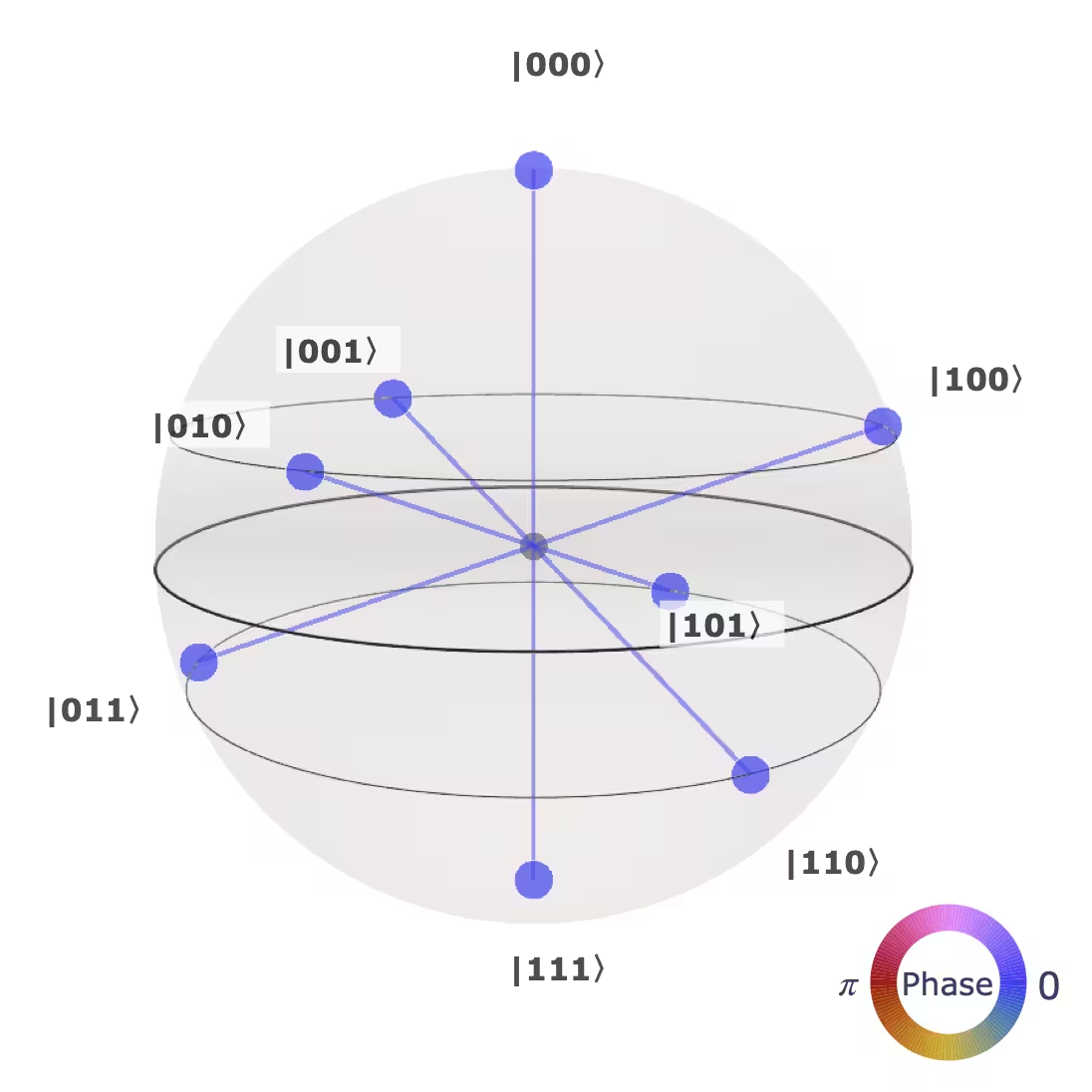 | q-sphere表現は、ゲートが初期等重ね合わせ状態 ,( はゲートをサポートするために必要なQubitの数)に作用した後の状態を示しています。 |
SWAPゲート
SWAPゲートは、2つのQubitの状態を入れ替えます。
| Composerリファレンス | OpenQASMリファレンス | Q-sphere | q-sphere表現に関する注意 |
|---|---|---|---|
 | swap q[0], q[1]; | | q-sphere表現は、ゲートが初期等重ね合わせ状態 ,( はゲートをサポートするために必要なQubitの数)に作用した後の状態を示しています。 |
恒等ゲート
恒等ゲート(IdゲートまたはIゲートとも呼ばれます)は、実際にはゲートが存在しないことを意味します。1ゲート時間分の間、Qubitに何も適用されないことを保証します。
| Composerリファレンス | QASMリファレンス |
|---|---|
 | id q[0]; |
位相ゲート
Tゲート
Tゲートは、角度 のRZと等価です。フォールトトレラント量子コンピュータは、すべての量子プログラムをTゲートとその逆演算、およびCliffordゲートのみにコンパイルします。
| Composerリファレンス | OpenQASMリファレンス | Q-sphere | q-sphere表現に関する注意 |
|---|---|---|---|
 | t q[0]; |  | q-sphere表現は、ゲートが初期等重ね合わせ状態 ,( はゲートをサポートするために必要なQubitの数)に作用した後の状態を示しています。 |
Sゲート
Sゲートは、 状態に位相 を適用します。角度 のRZと等価です。なお、S=P() です。
| Composerリファレンス | OpenQASMリファレンス | Q-sphere | q-sphere表現に関する注意 |
|---|---|---|---|
 | s q[0]; |  | q-sphere表現は、ゲートが初期等重ね合わせ状態 ,( はゲートをサポートするために必要なQubitの数)に作用した後の状態を示しています。 |
Zゲート
Pauli Zゲートは、 状態に対して恒等として作用し、 状態の符号を -1 倍します。そのため、 と 状態を反転させます。+/- 基底において、このゲートは / 基底でのNOTゲートと同じ役割を果たします。
| Composerリファレンス | OpenQASMリファレンス | Q-sphere | q-sphere表現に関する注意 |
|---|---|---|---|
 | z q[0]; |  | q-sphere表現は、ゲートが初期等重ね合わせ状態 ,( はゲートをサポートするために必要なQubitの数)に作用した後の状態を示しています。 |
ゲート
TdgまたはT-daggerゲートとも呼ばれます。
Tゲートの逆演算です。
| Composerリファレンス | OpenQASMリファレンス | Q-sphere | q-sphere表現に関する注意 |
|---|---|---|---|
 | tdg q[0]; |  | q-sphere表現は、ゲートが初期等重ね合わせ状態 ,( はゲートをサポートするために必要なQubitの数)に作用した後の状態を示しています。 |
ゲート
SdgまたはS-daggerゲートとも呼ばれます。
Sゲートの逆演算です。
| Composerリファレンス | OpenQASMリファレンス | Q-sphere | q-sphere表現に関する注意 |
|---|---|---|---|
 | sdg q[0]; |  | q-sphere表現は、ゲートが初期等重ね合わせ状態 ,( はゲートをサポートするために必要なQubitの数)に作用した後の状態を示しています。 |
位相ゲート
位相ゲート(以前はU1ゲートと呼ばれていました)は、 状態に位相 を適用します。 の特定の値に対して、他のゲートと等価になります。例えば、P()=Z、P(/)=S、P()=T です。全体位相 を除いて、RZ() と等価です。
| Composerリファレンス | OpenQASMリファレンス | Q-sphere | q-sphere表現に関する注意 |
|---|---|---|---|
 | p(theta) q[0]; | | q-sphere表現は、ゲートが初期等重ね合わせ状態 ,( はゲートをサポートするために必要なQubitの数)に作用した後の状態を示しています。 |
IBM Quantum Composerでは、theta のデフォルト値は です。
RZゲート
RZゲートは を実装します。ブロッホ球上では、このゲートはQubit状態をz軸まわりに指定した角度だけ回転させることに対応します。
| Composerリファレンス | OpenQASMリファレンス | Q-sphere | q-sphere表現に関する注意 |
|---|---|---|---|
 | rz(angle) q[0]; | | q-sphere表現は、ゲートが初期等重ね合わせ状態 ,( はゲートをサポートするために必要なQubitの数)に作用した後の状態を示しています。 |
IBM Quantum Composerでは、angle のデフォルト値は です。そのため、q-sphereビジュアライゼーションではこの角度が使用されています。
非ユニタリ演算子と修飾子
リセット操作
リセット操作は、操作が適用される前の状態にかかわらず、Qubitを状態 に戻します。可逆な操作ではありません。
| Composerリファレンス | OpenQASMリファレンス |
|---|---|
 | reset q[0]; |
測定
標準基底(z基底または計算基底とも呼ばれます)での測定です。ゲートと組み合わせることで、あらゆる種類の測定を実装できます。可逆な操作ではありません。
| Composerリファレンス | OpenQASMリファレンス |
|---|---|
 | measure q[0]; |
制御修飾子
制御修飾子は、元の操作が制御Qubitの状態に依存するゲートを生成します。制御が 状態にある場合、標的Qubitは指定されたユニタリ発展を経ます。一方、制御が 状態にある場合は操作が行われません。制御が重ね合わせ状態にある場合、結果として生じる操作は線形性に従います。
制御修飾子をゲートにドラッグすると、そのゲートに制御を追加できます。ゲートの上下のQubitワイヤ上に点が表示されます。制御の標的にできるQubitを示しており、1つ以上の点をクリックして標的を1つ以上のQubitに割り当てます。ゲートを右クリックして制御を割り当てることもできます。
制御を削除するには、ゲートを右クリックして制御を削除するオプションを選択します。
| Composerリファレンス | OpenQASMリファレンス |
|---|---|
 | c |
バリア操作
量子プログラムをより効率化するために、コンパイラはゲートの結合を試みます。バリアは、これらの結合が行われないようコンパイラに指示する命令です。また、ビジュアライゼーションにも役立ちます。
| Composerリファレンス | OpenQASMリファレンス |
|---|---|
 | barrier q; |
Hadamardゲート
Hゲート
HゲートまたはHadamardゲートは、 および 状態をそれぞれ および に回転させます。重ね合わせ状態を作るのに便利です。古典コンピュータ上の普遍的ゲートセットにHadamardゲートを加えると、量子コンピュータ上の普遍的ゲートセットになります。
| Composerリファレンス | OpenQASMリファレンス | Q-sphere | q-sphere表現に関する注意 |
|---|---|---|---|
 | h q[0]; |  | q-sphere表現は、ゲートが初期等重ね合わせ状態 ,( はゲートをサポートするために必要なQubitの数)に作用した後の状態を示しています。 |
量子ゲート
ゲート
平方根NOTゲートとも呼ばれます。
このゲートはXの平方根 を実装します。このゲートを2回連続で適用すると、標準的なPauli-Xゲート(NOTゲート)が得られます。Hadamardゲートと同様に、 はQubitが状態 にある場合に等確率重ね合わせ状態を作りますが、相対位相が異なります。一部のハードウェアでは、 パルスまたはX90パルスで実装できるネイティブゲートです。
| Composerリファレンス | OpenQASMリファレンス | Q-sphere | q-sphere表現に関する注意 |
|---|---|---|---|
 | sx q[0]; |  | q-sphere表現は、ゲートが初期等重ね合わせ状態 ,( はゲートをサポートするために必要なQubitの数)に作用した後の状態を示しています。 |
ゲート
SXdgまたは平方根NOT-daggerゲートとも呼ばれます。
これは ゲートの逆演算です。NOTゲートは自身の逆演算であるため、このゲートを2回連続で適用するとPauli-Xゲート(NOTゲート)が得られます。 ゲートと同様に、このゲートは等確率重ね合わせ状態を生成するために使用でき、X90パルスを用いて一部のハードウェアでネイティブに実装されています。
| Composerリファレンス | OpenQASMリファレンス | Q-sphere | q-sphere表現に関する注意 |
|---|---|---|---|
 | sxdg q[0]; | | q-sphere表現は、ゲートが初期等重ね合わせ状態 ,( はゲートをサポートするために必要なQubitの数)に作用した後の状態を示しています。 |
Yゲート
Pauli Yゲートは、角度 のRyと等価です。全体位相因子を除いて、XとZを適用することと等価です。
| Composerリファレンス | OpenQASMリファレンス | Q-sphere | q-sphere表現に関する注意 |
|---|---|---|---|
 | y q[0]; |  | q-sphere表現は、ゲートが初期等重ね合わせ状態 ,( はゲートをサポートするために必要なQubitの数)に作用した後の状態を示しています。 |
RXゲート
RXゲートは を実装します。ブロッホ球上では、このゲートはQubit状態をx軸まわりに指定した角度だけ回転させることに対応します。
| Composerリファレンス | OpenQASMリファレンス | Q-sphere | q-sphere表現に関する注意 |
|---|---|---|---|
 | rx(angle) q[0]; |  | q-sphere表現は、ゲートが初期等重ね合わせ状態 ,( はゲートをサポートするために必要なQubitの数)に作用した後の状態を示しています。 |
IBM Quantum Composerでは、angle のデフォルト値は です。そのため、q-sphereビジュアライゼーションではこの角度が使用されています。
RYゲート
RYゲートは を実装します。ブロッホ球上では、このゲートはQubit状態をy軸まわりに指定した角度だけ回転させることに対応し、複素振幅を導入しません。
| Composerリファレンス | OpenQASMリファレンス | Q-sphere | q-sphere表現に関する注意 |
|---|---|---|---|
 | ry(angle) q[0]; |  | q-sphere表現は、ゲートが初期等重ね合わせ状態 ,( はゲートをサポートするために必要なQubitの数)に作用した後の状態を示しています。 |
IBM Quantum Composerでは、angle のデフォルト値は です。そのため、以下のq-sphereビジュアライゼーションではこの角度が使用されています。
RXXゲート
RXXゲートは を実装します。イオントラップシステムのネイティブゲートであるMølmer–Sørensenゲートは、RXXゲートの和として表現できます。
| Composerリファレンス | OpenQASMリファレンス | Q-sphere | q-sphere表現に関する注意 |
|---|---|---|---|
 | rxx(angle) q[0], q[1]; |  | q-sphere表現は、ゲートが初期等重ね合わせ状態 ,( はゲートをサポートするために必要なQubitの数)に作用した後の状態を示しています。 |
IBM Quantum Composerでは、angle のデフォルト値は です。
RZZゲート
RZZゲートは1つのパラメータ(ラジアン単位の角度)を必要とします。このゲートは対称であり、作用する2つのQubitを入れ替えても変わりません。
| Composerリファレンス | OpenQASMリファレンス | Q-sphere | q-sphere表現に関する注意 |
|---|---|---|---|
 | rzz(angle) q[0], q[1]; |  | q-sphere表現は、ゲートが初期等重ね合わせ状態 ,( はゲートをサポートするために必要なQubitの数)に作用した後の状態を示しています。 |
IBM Quantum Composerでは、angle のデフォルト値は です。
Uゲート
(以前はU3ゲートと呼ばれていました) 3つのパラメータにより、任意の単一Qubitゲートを構成できます。所要時間は1ゲート時間単位です。
| Composerリファレンス | OpenQASMリファレンス | Q-sphere | q-sphere表現に関する注意 |
|---|---|---|---|
 | u(theta, phi, lam) q[0]; |  | q-sphere表現は、ゲートが初期等重ね合わせ状態 ,( はゲートをサポートするために必要なQubitの数)に作用した後の状態を示しています。 |
IBM Quantum Composerでは、angle のデフォルト値は です。
RCCXゲート
Margolus ゲートとも呼ばれる簡略化Toffoliゲートです。
簡略化Toffoliゲートは、相対位相を除いてToffoliゲートを実装します。この実装は3つのCXゲートを必要とし、https://arxiv.org/abs/quant-ph/0312225 で示されているように、これは可能な最小数です。なお、簡略化ToffoliはToffoliと等価ではありませんが、Toffoliゲートが後でアンコンピュートされる箇所で使用できます。
| Composerリファレンス | OpenQASMリファレンス | Q-sphere | q-sphere表現に関する注意 |
|---|---|---|---|
 | rccx a, b, c; |  | q-sphere表現は、ゲートが初期等重ね合わせ状態 ,( はゲートをサポートするために必要なQubitの数)に作用した後の状態を示しています。 |
RC3Xゲート
簡略化3制御Toffoliゲートです。
簡略化Toffoliゲートは、相対位相を除いてToffoliゲートを実装します。なお、簡略化ToffoliはToffoliと等価ではありませんが、Toffoliゲートが後でアンコンピュートされる箇所で使用できます。
| Composerリファレンス | OpenQASMリファレンス | Q-sphere | q-sphere表現に関する注意 |
|---|---|---|---|
 | rc3x a, b, c, d; | 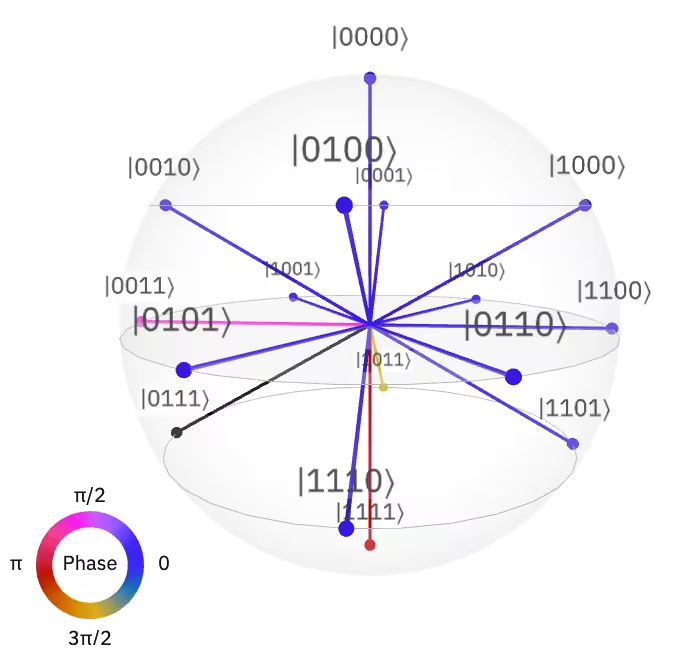 | q-sphere表現は、ゲートが初期等重ね合わせ状態 ,( はゲートをサポートするために必要なQubitの数)に作用した後の状態を示しています。 |